The Site Migration feature in Demi WordPress Plugin allows you to move your entire website from one WordPress installation to another. This is useful when migrating a site to a new server, domain, or hosting provider.
The migration process works by creating a full site backup on the original website and restoring that backup on the new website.
For this guide, we will refer to the original website as Site A and the destination website as Site B.
Step 1: Create a Backup on Site A
First, you need to create a full backup of the website you want to migrate.
- Log in to the WordPress admin dashboard on Site A.
- Navigate to Appearance → Demi → Backup.
- Click the Create Full Backup button.
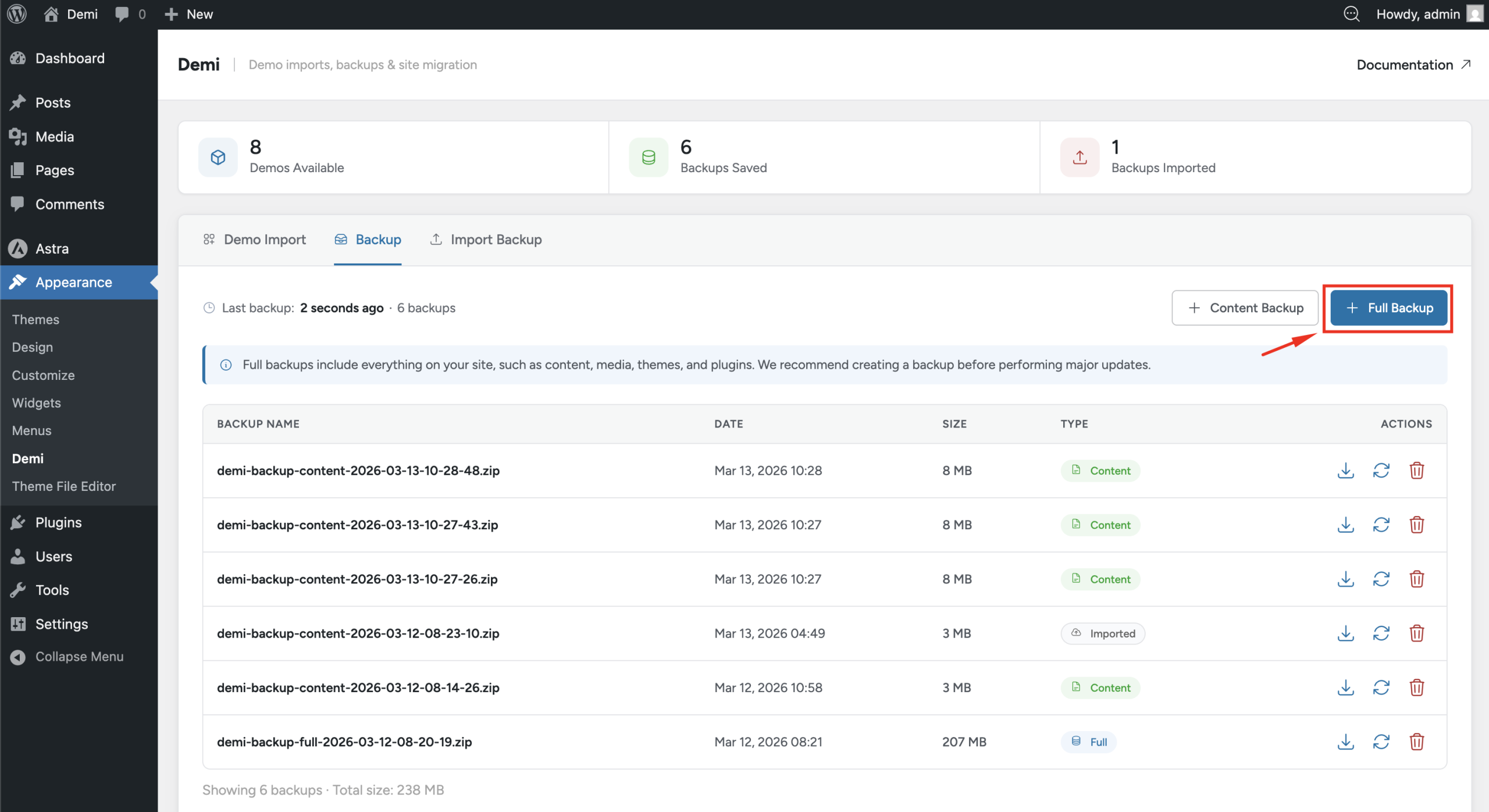
Demi will generate a complete backup of the website, including the database, themes, plugins, media files, and content.
Once the backup is created, it will appear in the backup list.
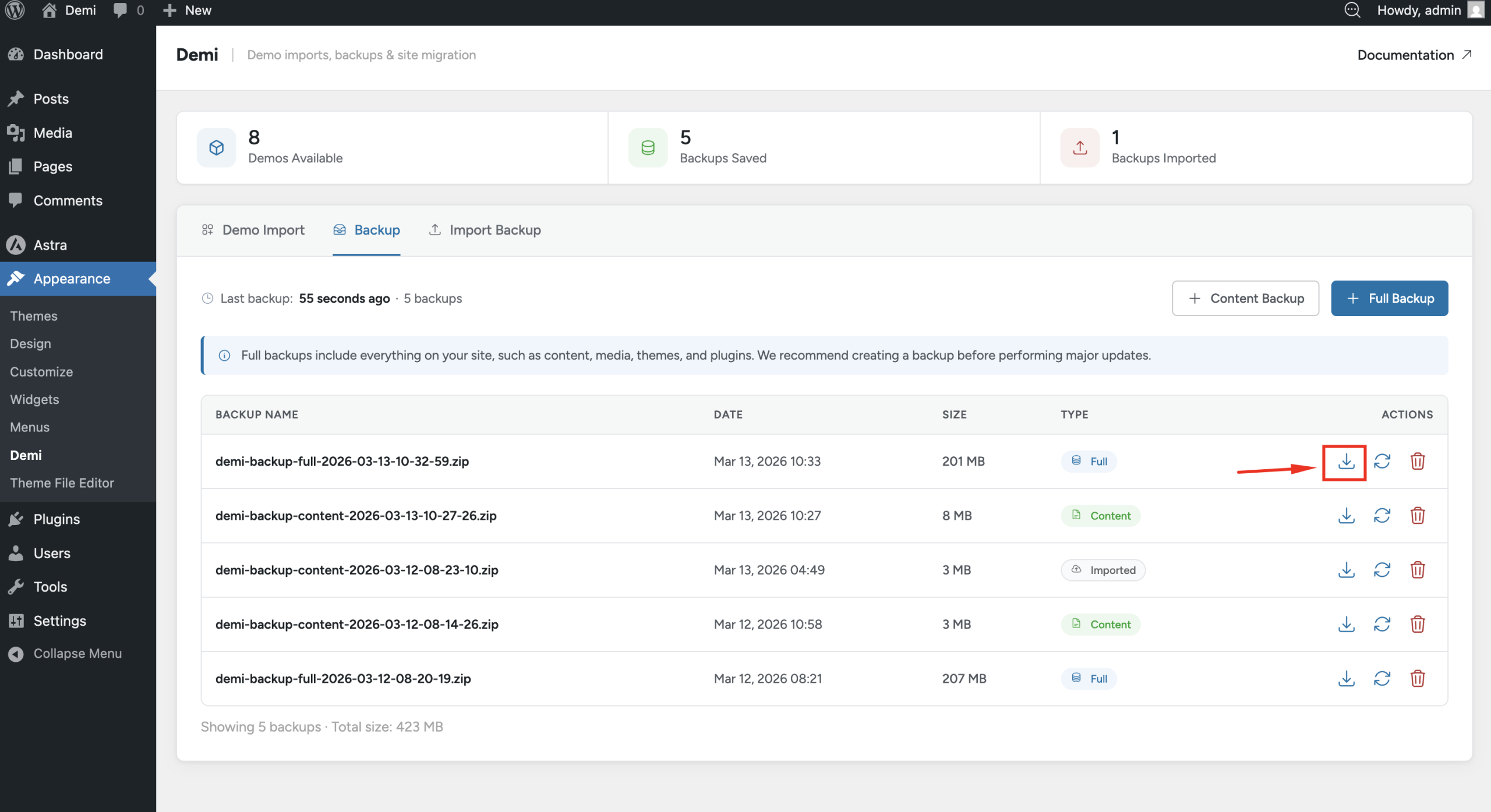
Step 2: Download the Backup
After the backup is ready, click the Download button to save the backup file to your computer. This file will be used to restore the website on the new installation.
Step 3: Prepare Site B
Next, go to the destination website (Site B).
Make sure Demi WordPress Plugin is installed and activated on Site B before continuing.
After activating the plugin:
- Log in to the WordPress dashboard on Site B.
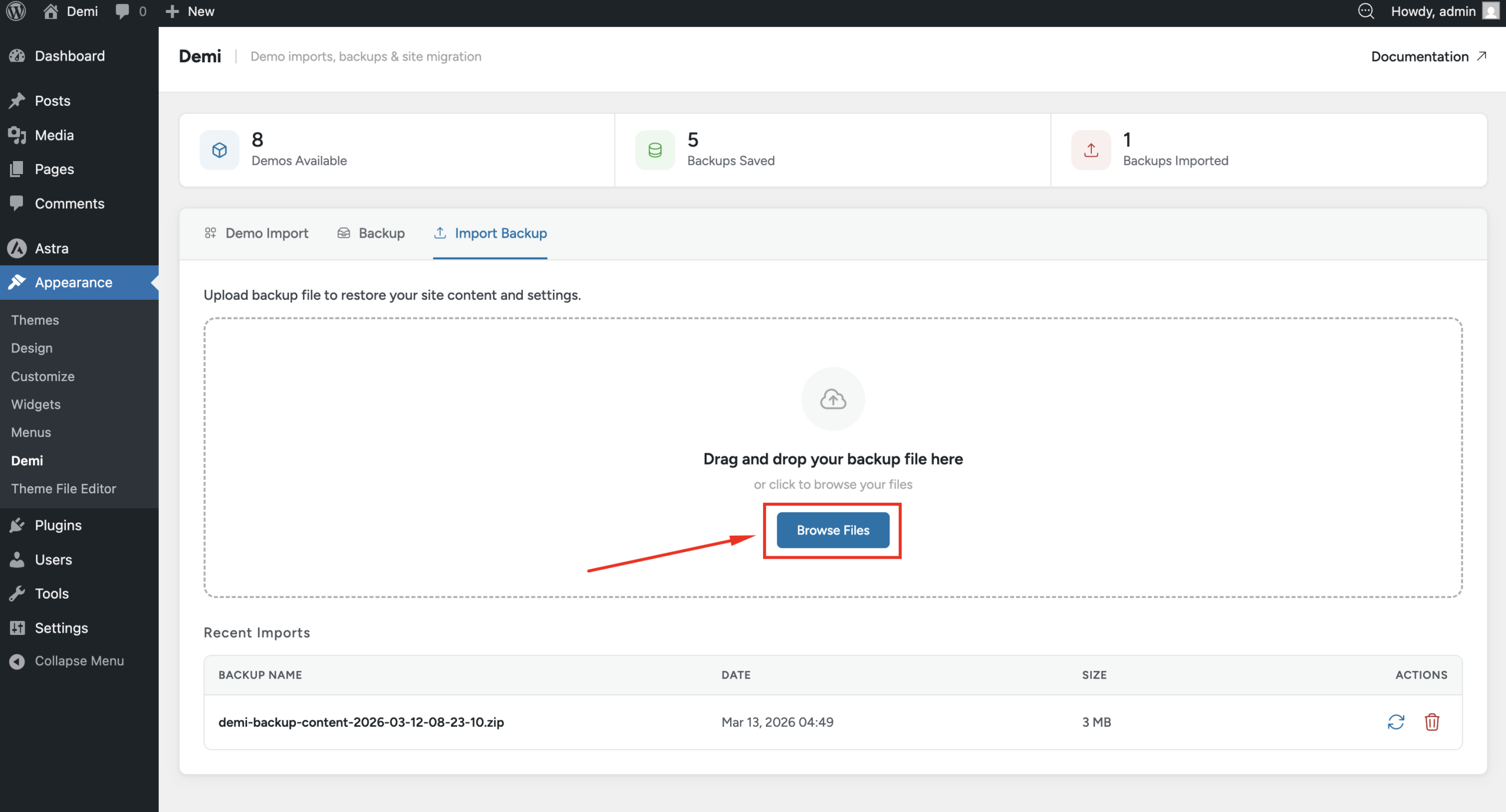
- Navigate to Appearance → Demi → Import Backup.
Step 4: Import the Backup
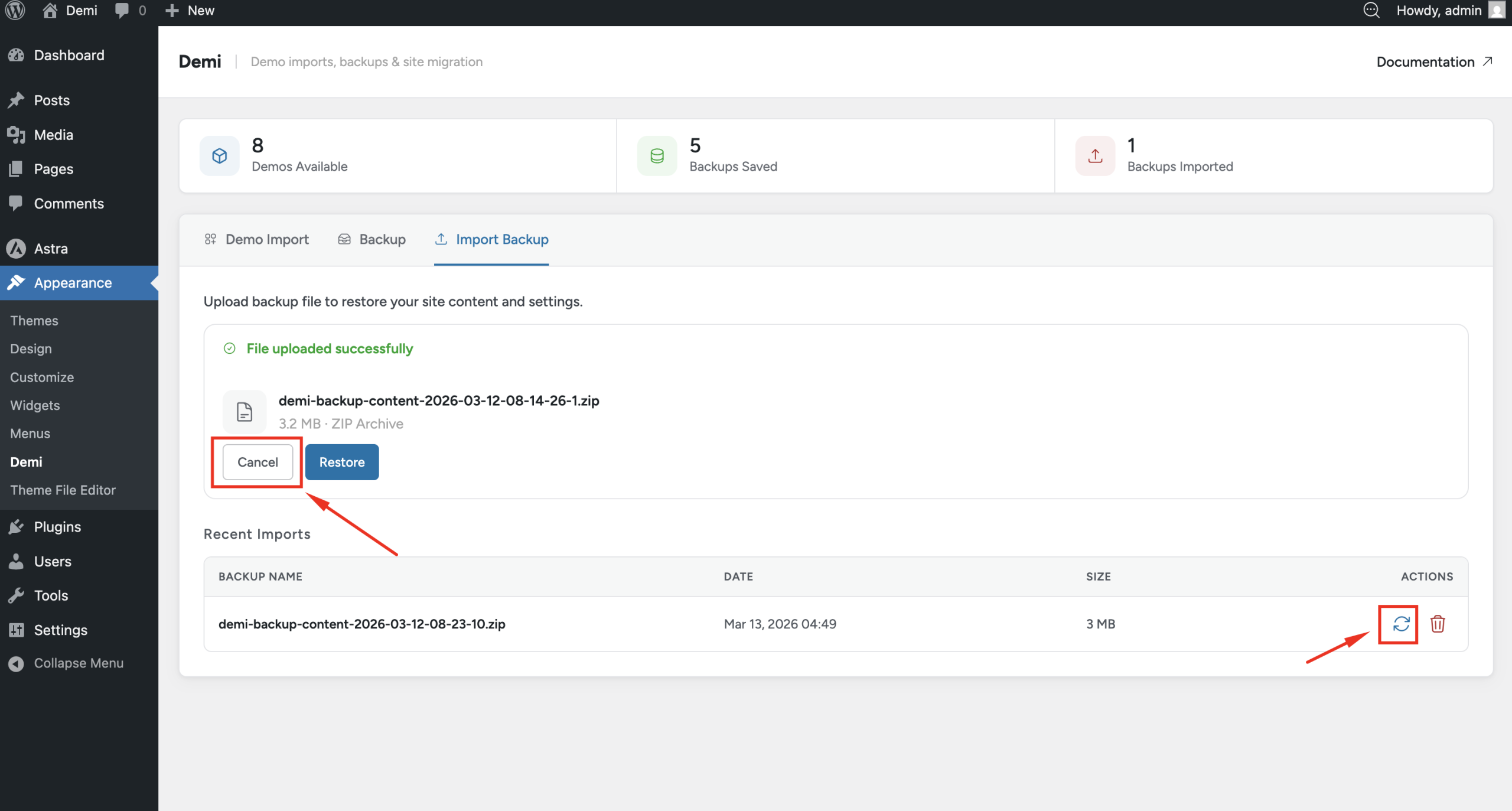
On the Import Backup page, upload the backup file that you downloaded from Site A.
After the file is uploaded, click the Restore button to begin the migration process. Demi will start restoring the backup and recreating the website on Site B.
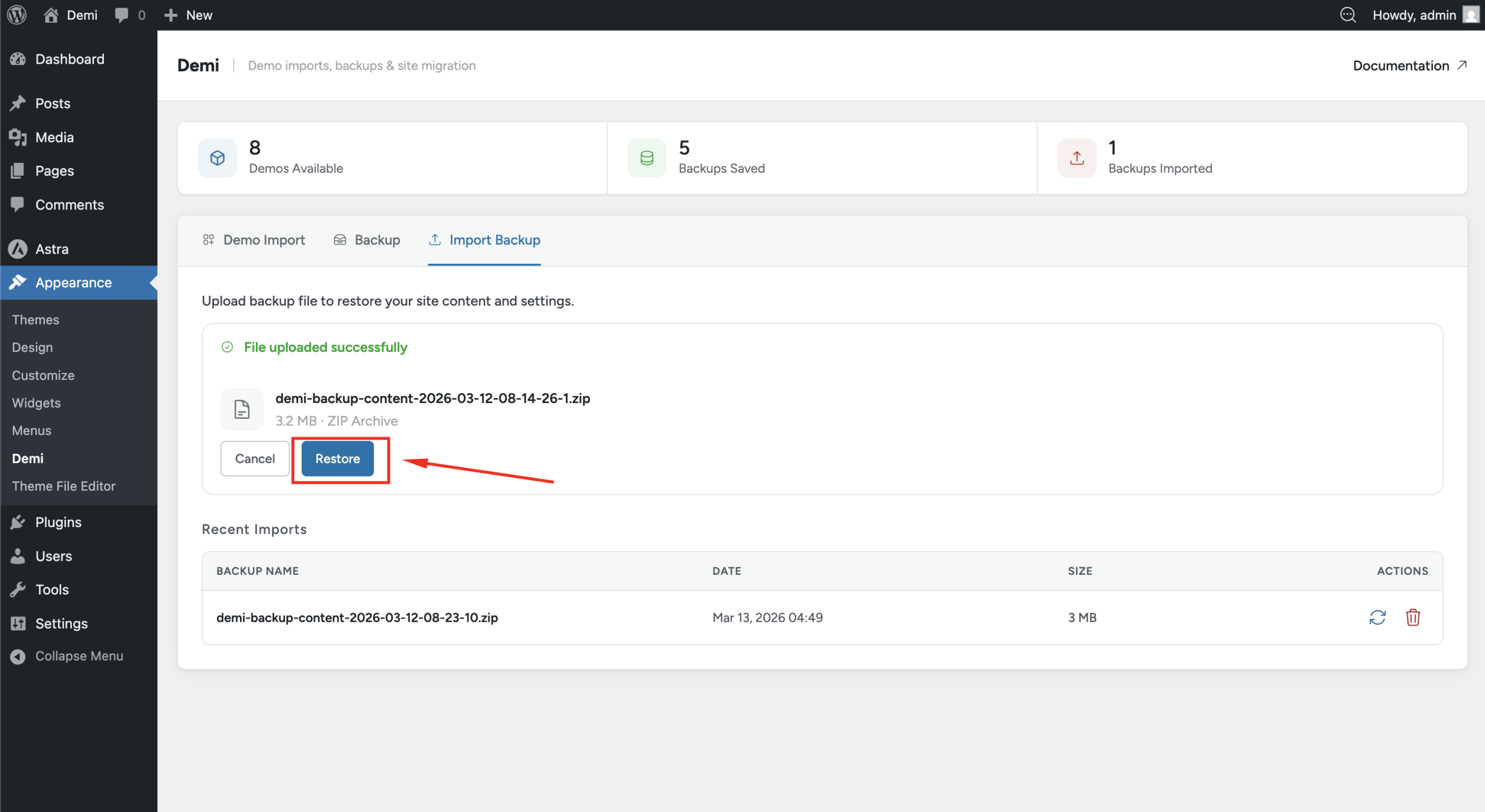
Canceling or Restoring Later
If needed, you can cancel the restore process during the import. When this happens, the uploaded backup will still appear in the import list, allowing you to restore it later whenever you want.