
The Demo Import feature in Demi WordPress Plugin allows you to quickly set up a website by importing a complete demo with just a few clicks. This includes pages, posts, images, and theme settings so you can replicate a fully designed website without building everything from scratch.
This feature is especially useful for themes that provide starter websites or demo layouts for users.
Accessing the Demo Import Page
To import a demo website, follow these steps. The demo import feature allows you to quickly set up a website using pre-built content, layouts, and settings, giving you a ready-to-use starting point that you can customize later.
- Log in to your WordPress admin dashboard.
- Navigate to Appearance → Demi.
- Open the Demo Import page.
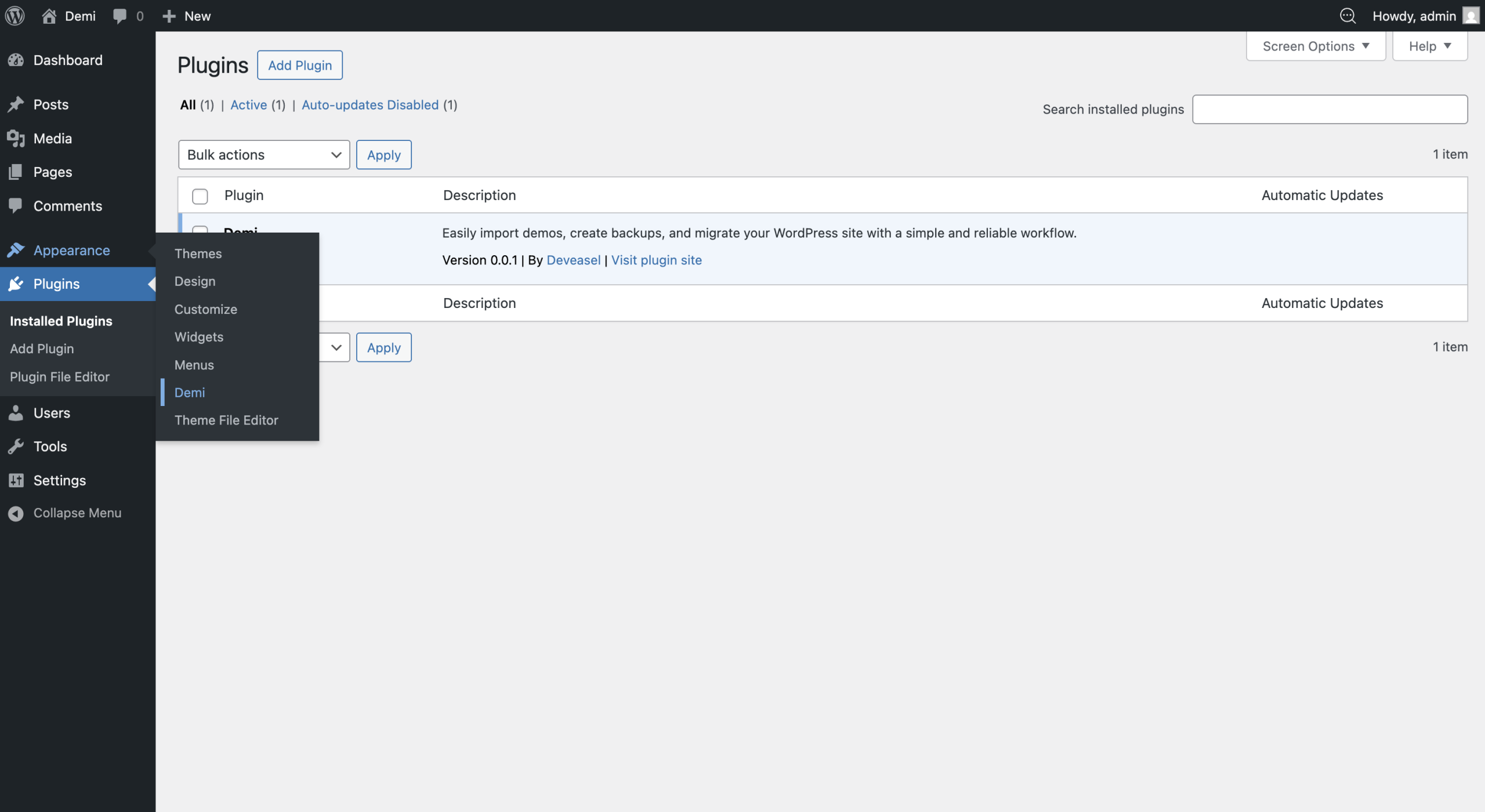
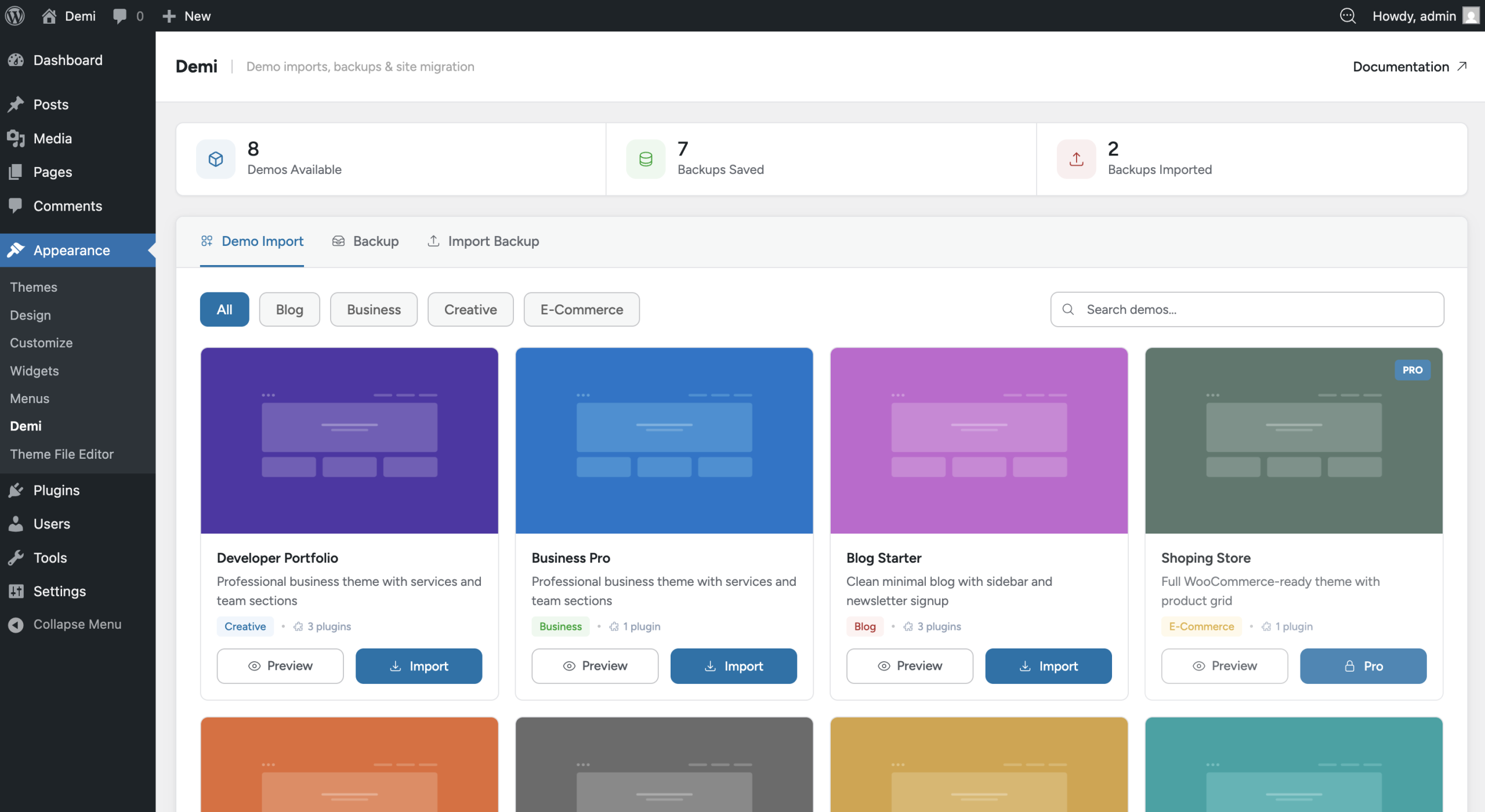
On this page, you will see a list of available demos provided by your theme.
Importing a Demo
Follow the steps below to import a demo website and quickly set up your site using the available demo content and layouts.
Step 1: Choose a Demo
On the Demo Import page, you will see a list of available demo layouts.
Select the demo you want to install and click the Import Demo button.
Step 2: Review Required Plugins
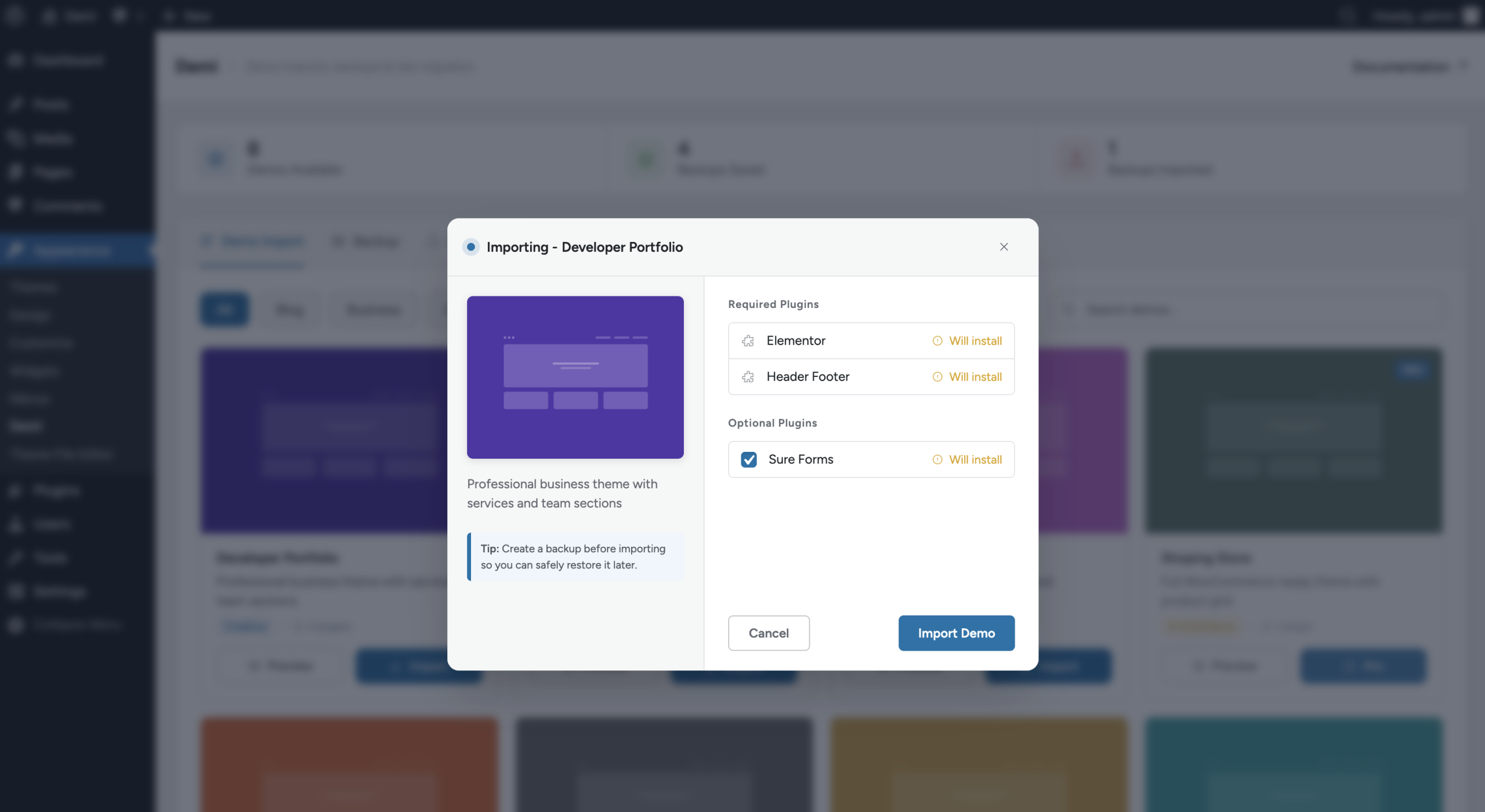
After clicking Import Demo, a modal window will appear showing the plugins required for that demo.
In this modal you will see:
- Required Plugins – These plugins must be installed for the demo to work properly.
- Optional Plugins – These plugins can be checked or unchecked depending on whether you want them installed.
You can select or deselect the optional plugins as needed.
Step 3: Start the Import
Once you review the plugin list, click the Import button to begin the import process.
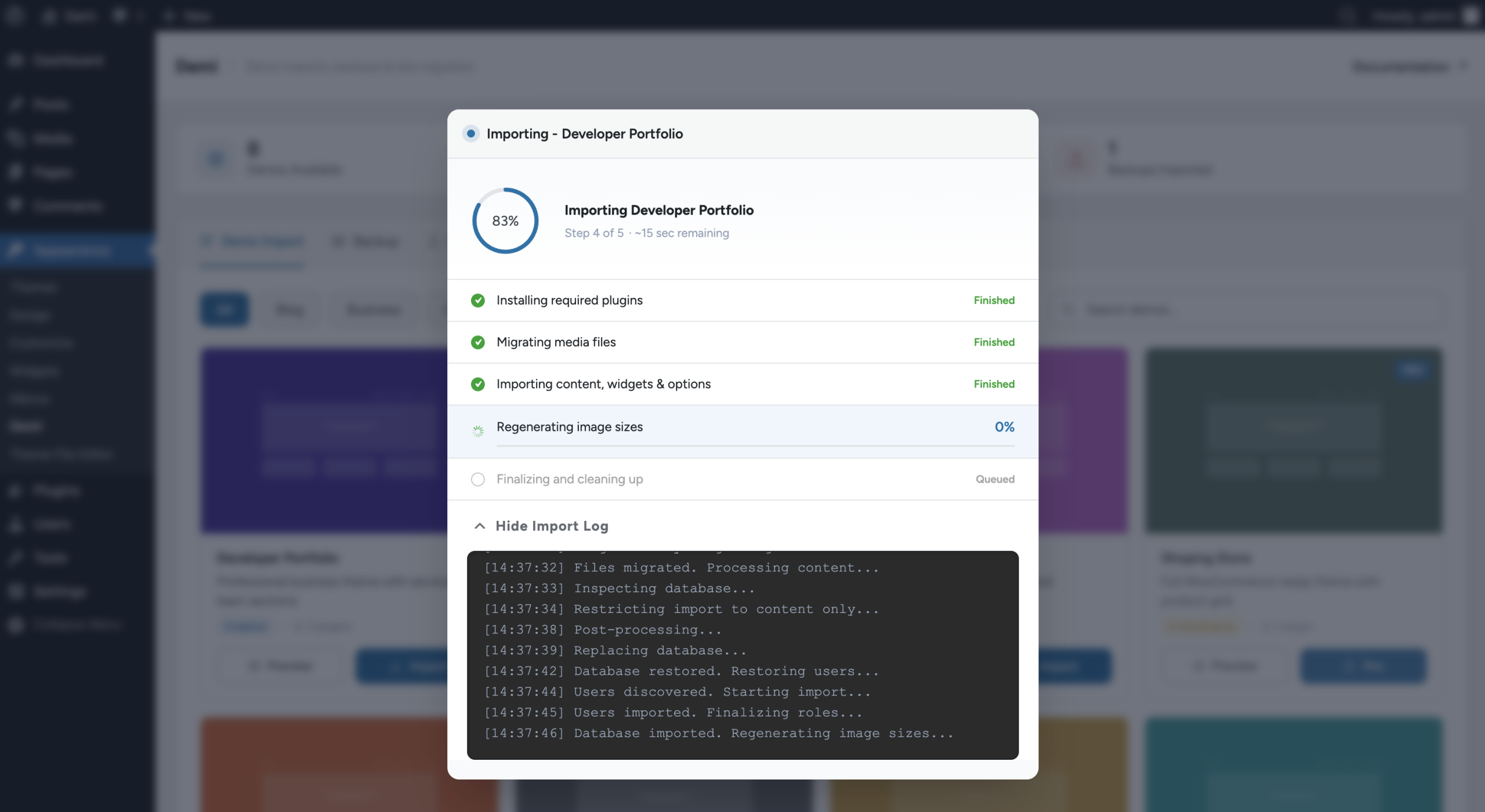
During the process, Demi will automatically perform the following steps:
- Install and activate required plugins
- Import demo media files
- Import content, including: (Pages, Posts, Theme options, Widgets & Settings)
- Regenerate image sizes to match your theme configuration
- Cleanup process, which includes: (Removing temporary files, Updating URLs to match your current website)
Step 4: Import Completion
Once the import process is finished, a success modal will appear confirming that the demo has been imported successfully.
You will also see a Visit Site button.
Click the Visit Site button to view your website with the newly imported demo.
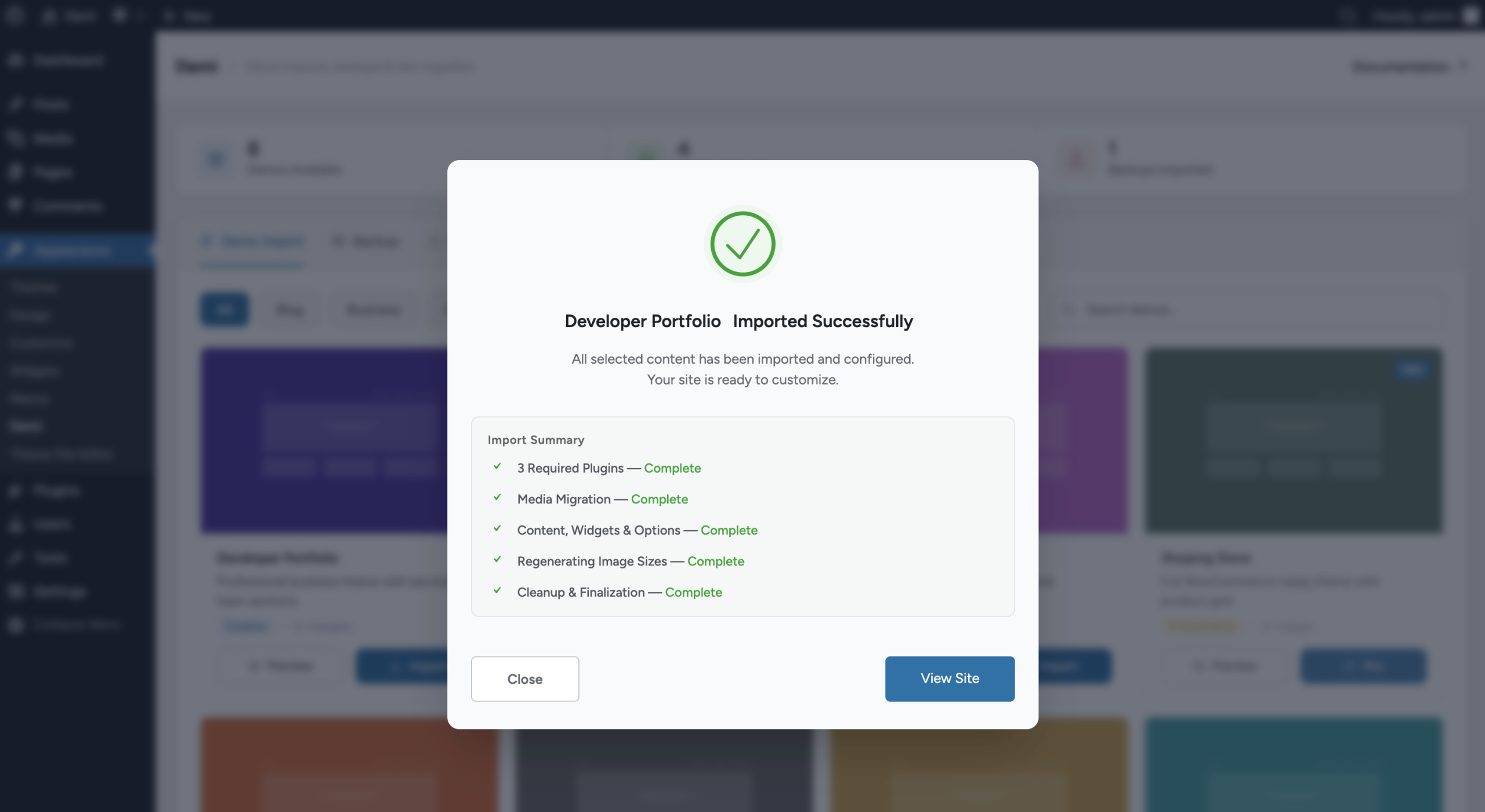
Your demo website should now look similar to the original demo provided by the theme.
What Does One-Click Demo Import Include?
Demi’s one-click demo import turns a clean WordPress install into a complete starter website. During the import it handles:
- Required and optional plugins for the demo
- Demo media files
- Pages, posts, theme options, widgets and settings
- Image size regeneration to match your theme
- Cleanup, including removing temporary files and updating URLs to your current website
Before You Import a Demo
- Use a fresh site when you can. Demo import works best on a clean WordPress install, because it adds pages, posts and settings to your site.
- Create a backup first. If your site already has content, follow the backup and restore guide so you can return to your previous state.
- Check the requirements. Demi needs WordPress 6.5 or later and PHP 8.0 or later. A WordPress memory limit of 128 MB or more is recommended.
- Install and activate Demi. If you have not done this yet, see the installation guide.
Offering Demos With Your Theme
If you build themes or starter sites, you can register your own demos so your users can import them in one click. Read how to register demos and how premium demos work in the developer guide.
Demo Import FAQ
Is one-click demo import free in Demi?
Yes. Demi is a free WordPress plugin and needs no account. You can install it from the WordPress plugin directory and open the Demo Import page under Appearance → Demi.
Does Demi install the plugins a demo needs?
Yes. After you click Import Demo, Demi shows the required and optional plugins for that demo. Required plugins are installed and activated automatically during the import, and you can choose whether to install the optional ones.
What does the demo import include?
Demi imports demo media files, pages, posts, theme options, widgets and settings. It also regenerates image sizes to match your theme and updates URLs to match your current website.
Should I back up my site before importing a demo?
Yes. A demo import adds content and changes settings, so create a backup first if your site already has content. You can use Demi’s backup and restore tools to do this.
Can theme developers offer their own demos with Demi?
Yes. Developers can register their own demos using Demi’s hooks and filters. The developer guide explains how to register demos and how premium demos work.