
The Site Migration feature in Demi WordPress Plugin allows you to move your entire website from one WordPress installation to another. This is useful when migrating a site to a new server, domain, or hosting provider.
The migration process works by creating a full site backup on the original website and restoring that backup on the new website.
For this guide, we will refer to the original website as Site A and the destination website as Site B.
Step 1: Create a Backup on Site A
First, you need to create a full backup of the website you want to migrate.
- Log in to the WordPress admin dashboard on Site A.
- Navigate to Appearance → Demi → Backup.
- Click the Create Full Backup button.
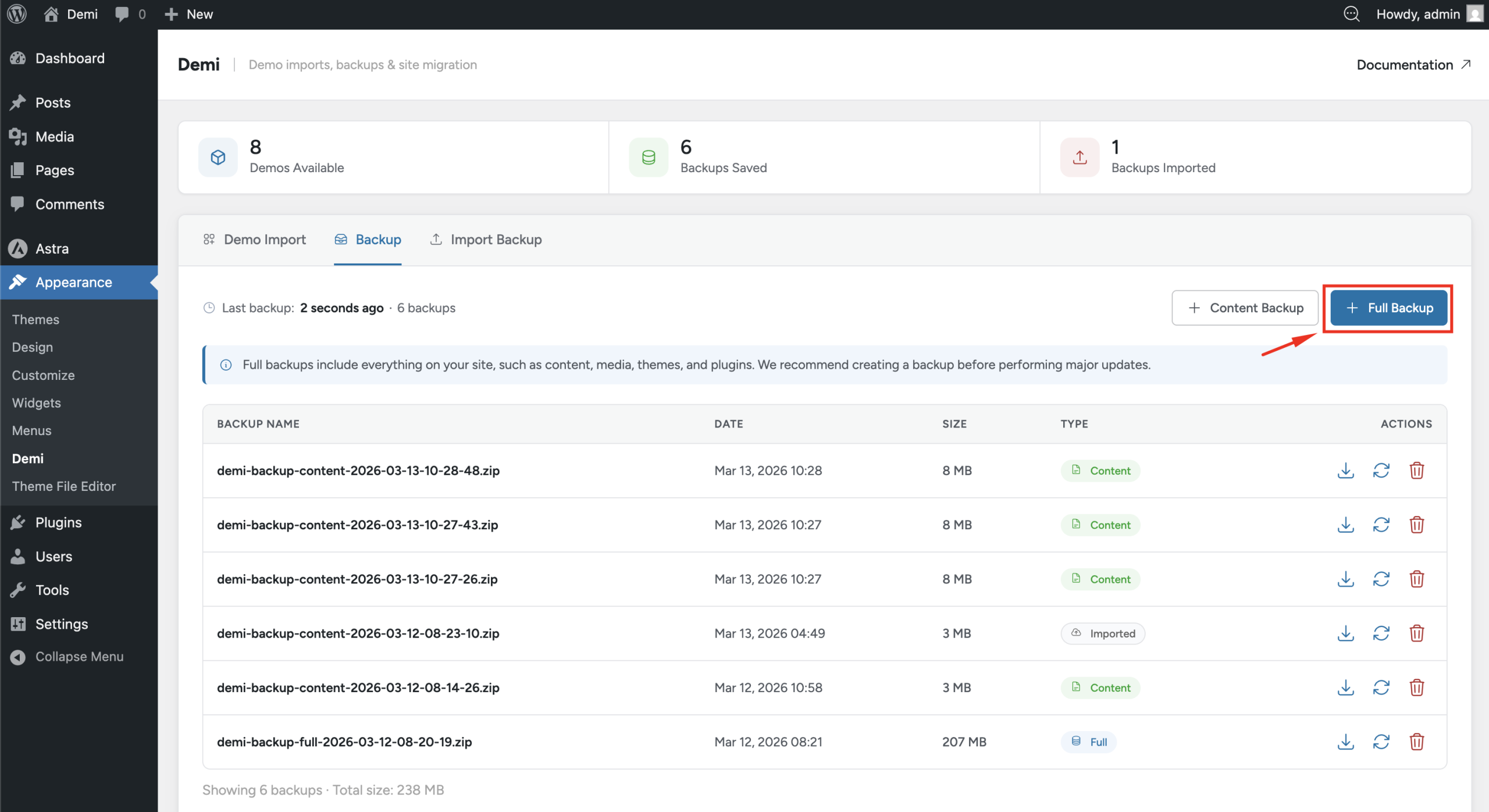
Demi will generate a complete backup of the website, including the database, themes, plugins, media files, and content.
Once the backup is created, it will appear in the backup list.
Step 2: Download the Backup
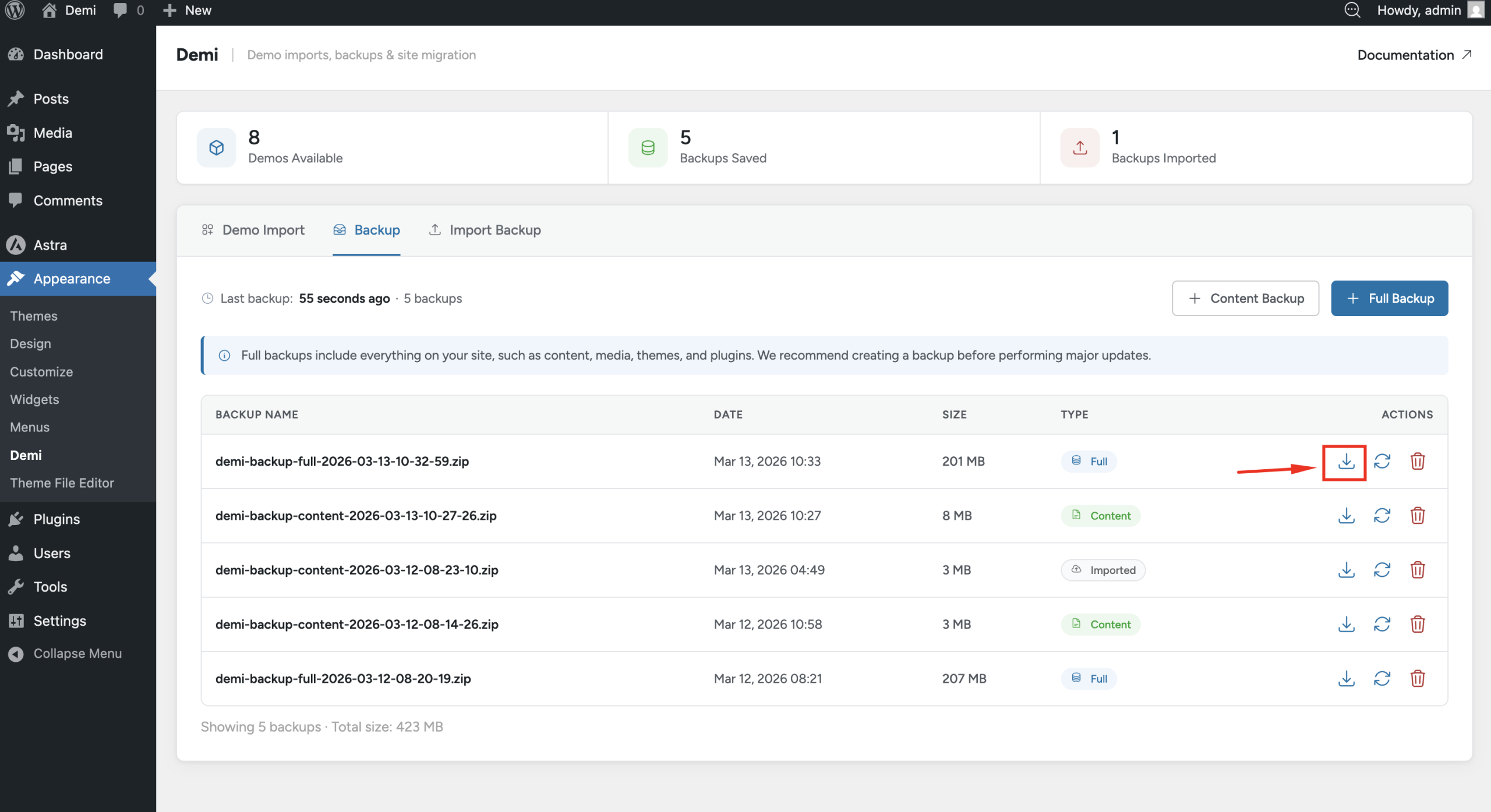
After the backup is ready, click the Download button to save the backup file to your computer. This file will be used to restore the website on the new installation.
Step 3: Prepare Site B
Next, go to the destination website (Site B).
Make sure Demi WordPress Plugin is installed and activated on Site B before continuing.
After activating the plugin:
- Log in to the WordPress dashboard on Site B.
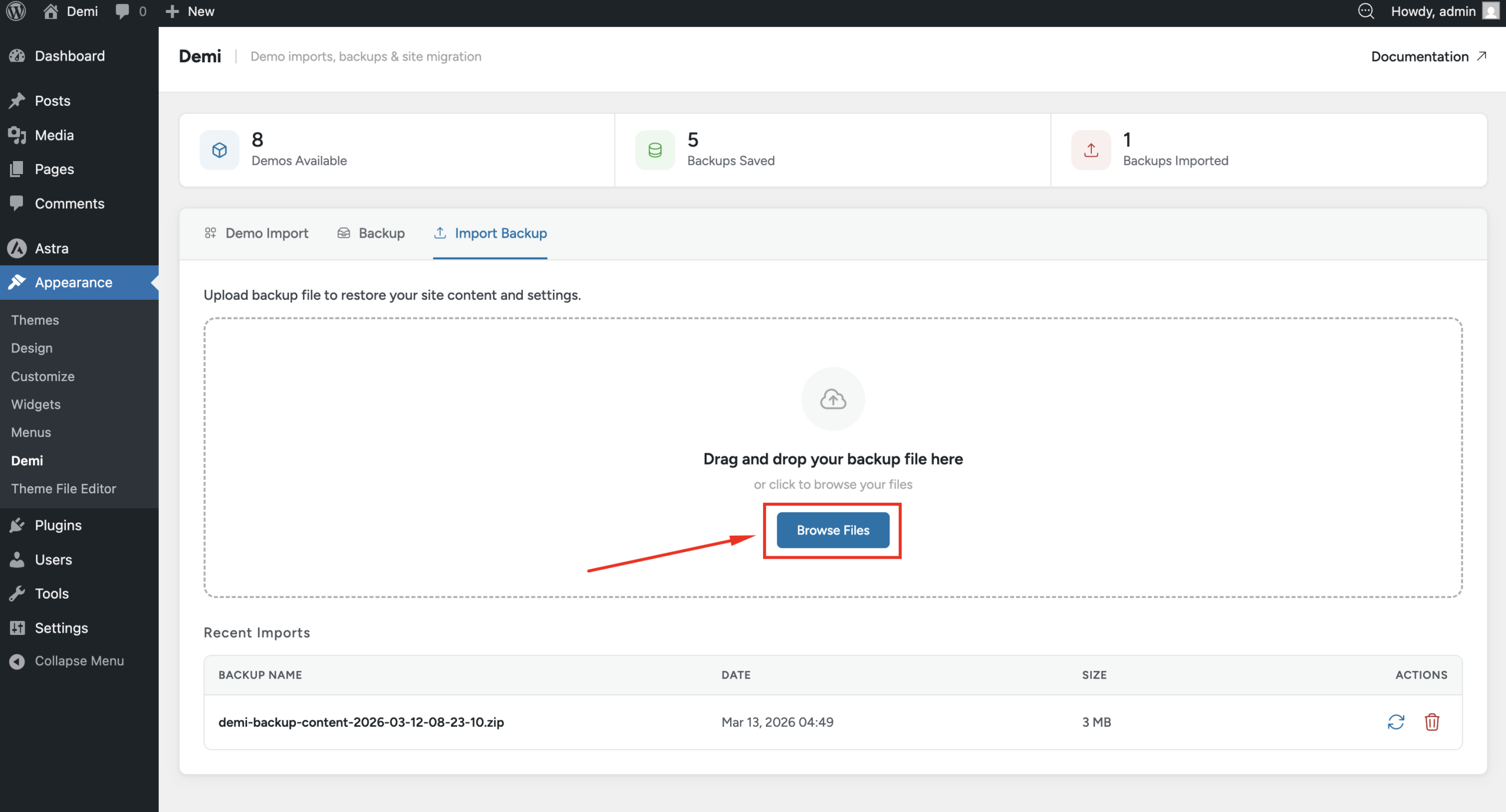
- Navigate to Appearance → Demi → Import Backup.
Step 4: Import the Backup
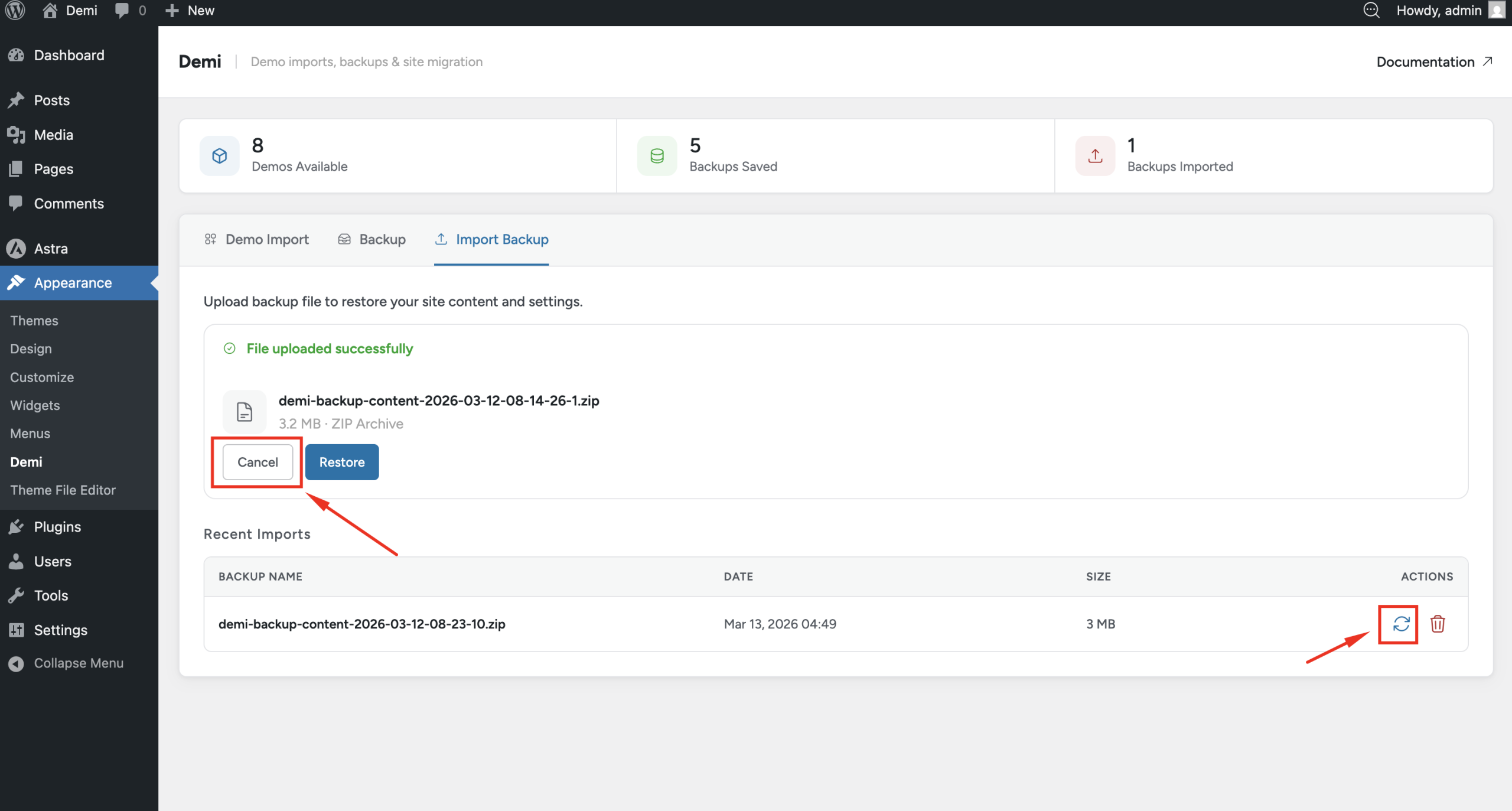
On the Import Backup page, upload the backup file that you downloaded from Site A.
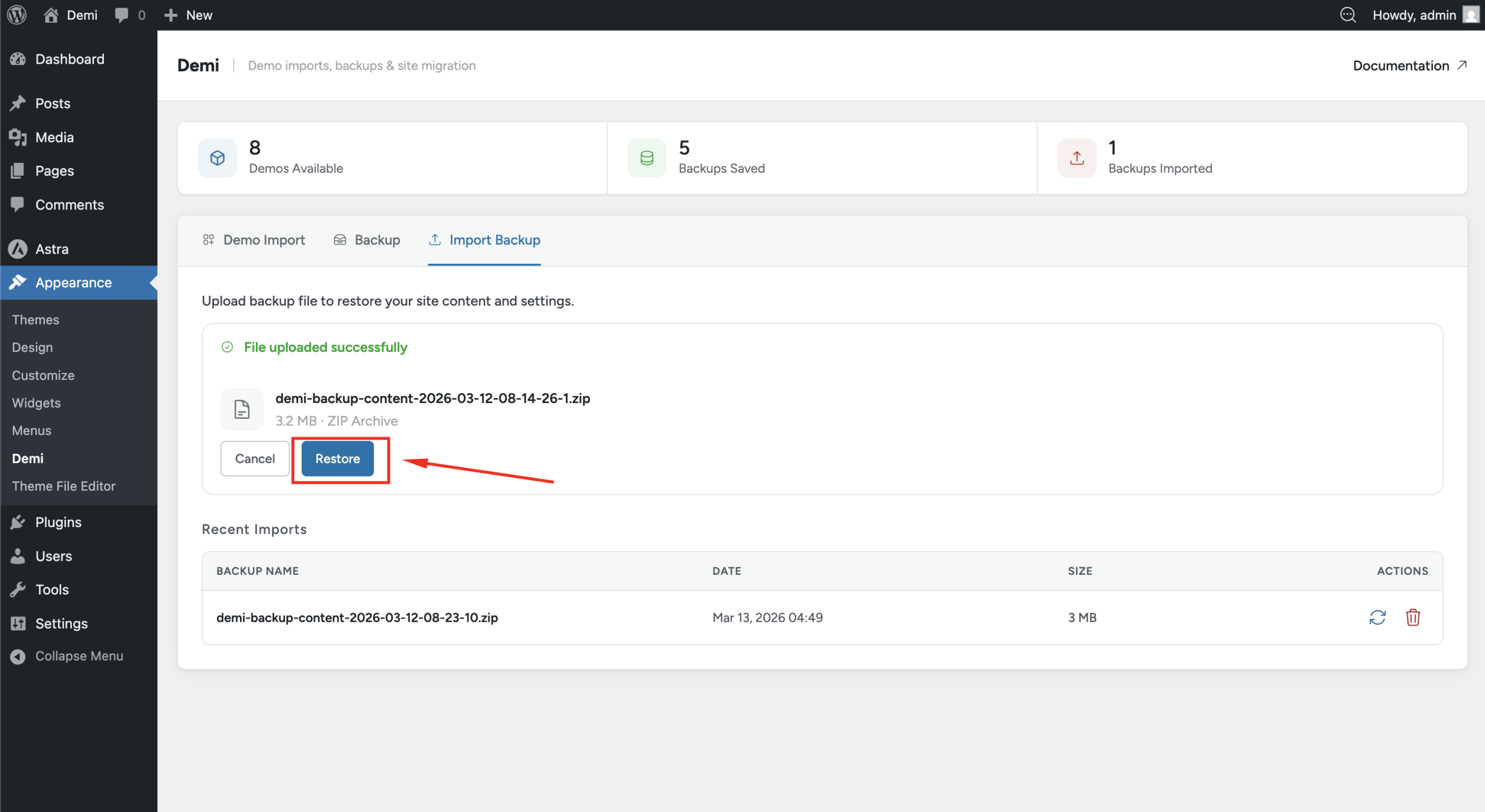
After the file is uploaded, click the Restore button to begin the migration process. Demi will start restoring the backup and recreating the website on Site B.
Canceling or Restoring Later
If needed, you can cancel the restore process during the import. When this happens, the uploaded backup will still appear in the import list, allowing you to restore it later whenever you want.
Before you migrate
- Install WordPress on Site B. The destination needs a working WordPress install with Demi activated.
- Check the requirements on both sites. Demi needs WordPress 6.5 or later and PHP 8.0 or later. A WordPress memory limit of 128 MB or more is recommended.
- Keep a safe copy. Keep the downloaded backup file until you have checked that Site B works.
- Back up Site B first if it has content. Restoring recreates the website from the backup, so anything already on Site B can be replaced. See Backup & Restore.
- Large sites need time. The time to create and restore a backup depends on the size of your website and your hosting.
After you migrate
- Log in to Site B. Because the database comes from Site A, you may need to use your Site A login details.
- Go to Settings → Permalinks and click Save to refresh URL rules.
- Open the homepage, a few posts and pages, the menus and the media library and check that everything loads.
- If you moved to a new domain, look for old URLs in your content. Use the Search & Replace tool with dry run to preview any changes before you apply them.
- If you changed hosts, update your domain’s DNS to point to the new server only after you have tested the new site.
- Test forms, checkout or login pages, and check that SSL (HTTPS) works on the new site.
Frequently asked questions
Is site migration free in Demi?
Yes. Demi is a free WordPress plugin and needs no account. The migration works by creating a full backup on one site and restoring it on another.
Do I need Demi on both websites?
Yes. Install and activate Demi on the original website to create the backup and on the destination website to import and restore it.
What does a Demi migration move?
A full backup includes the database, themes, plugins, media files and content, so the destination site is recreated from the original.
Can I use Demi to move a site to a new domain or a new host?
Yes. The Site Migration feature is designed for moving a website to a new server, domain or hosting provider, and it can also clone a site to another WordPress installation.
Can I restore the migration later?
Yes. If you cancel during the import, the uploaded backup stays in the import list, so you can restore it later.
Do I need to update URLs after moving to a new domain?
Check your site after the move. If any old URLs remain in your content, use Demi’s Search & Replace tool with the dry run option to preview and update them.